
START WITH A BASELINE
One easy image tells you very little.
A remover can look excellent on a centered object against a plain wall and still struggle with hair, leaves, shadows or a background that shares the subject’s colour. That is why a useful test is a progression. Each image adds one kind of visual difficulty while keeping the task understandable.
This is not a scientific benchmark. The set is a practical quality check for a real workflow: does the subject remain intact, does the background actually disappear and is the PNG usable in the place where you need it?
THE TEST SET
Five images with progressively harder edges.
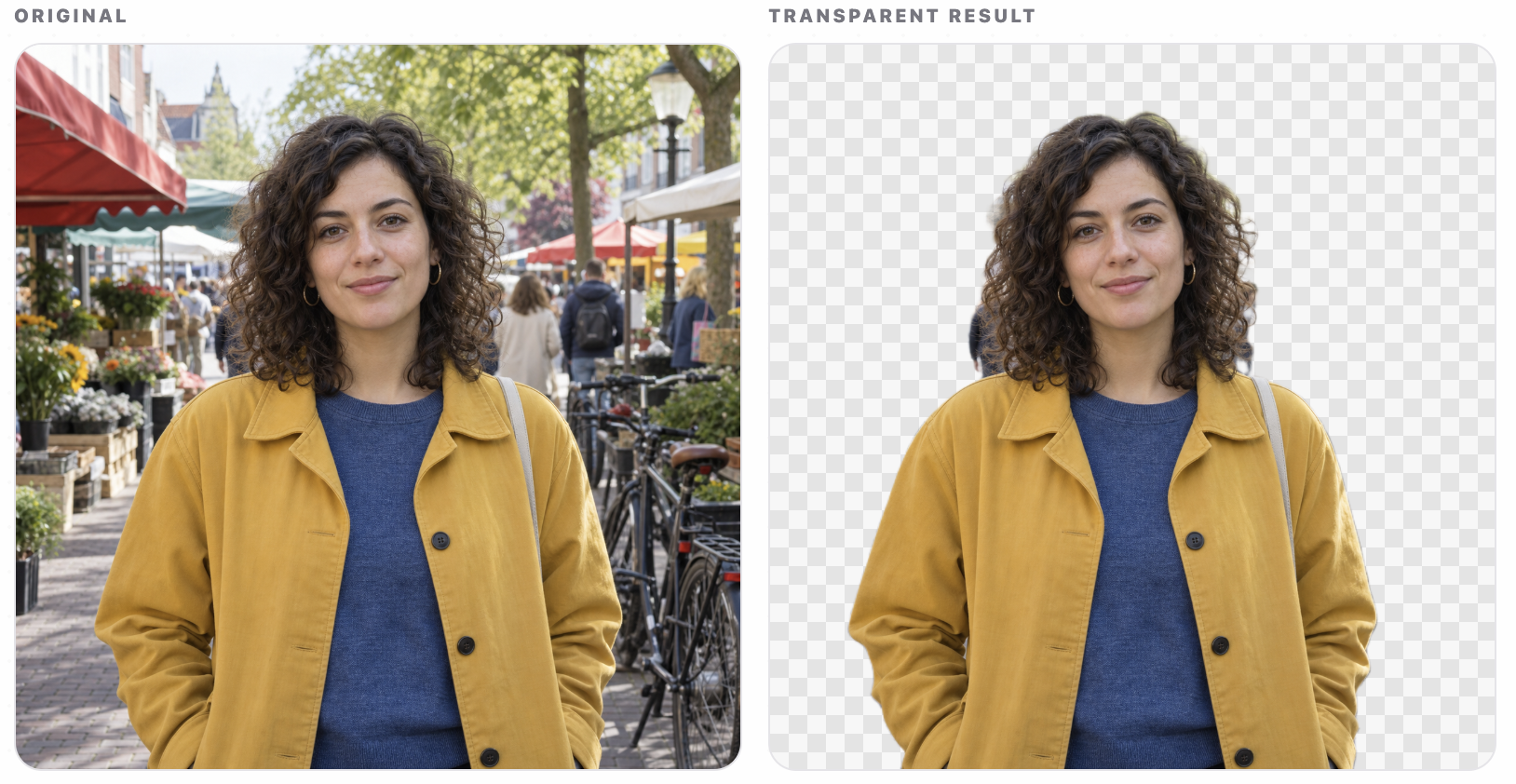
Run the same source images through your background-removal workflow, then compare the result with the examples below. Keep the originals unchanged and judge each result at the size where it will actually be used.
source image ai-generated
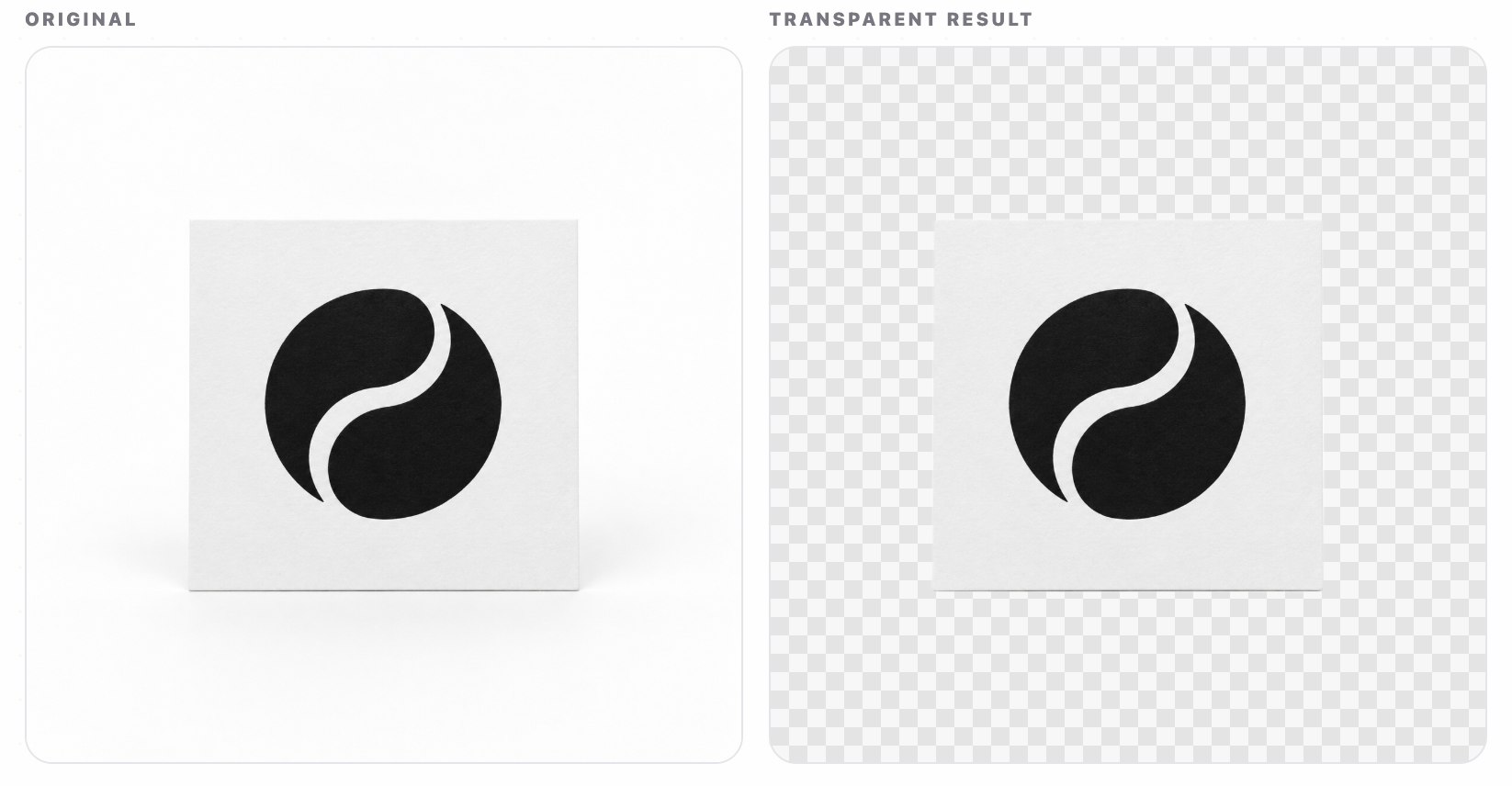
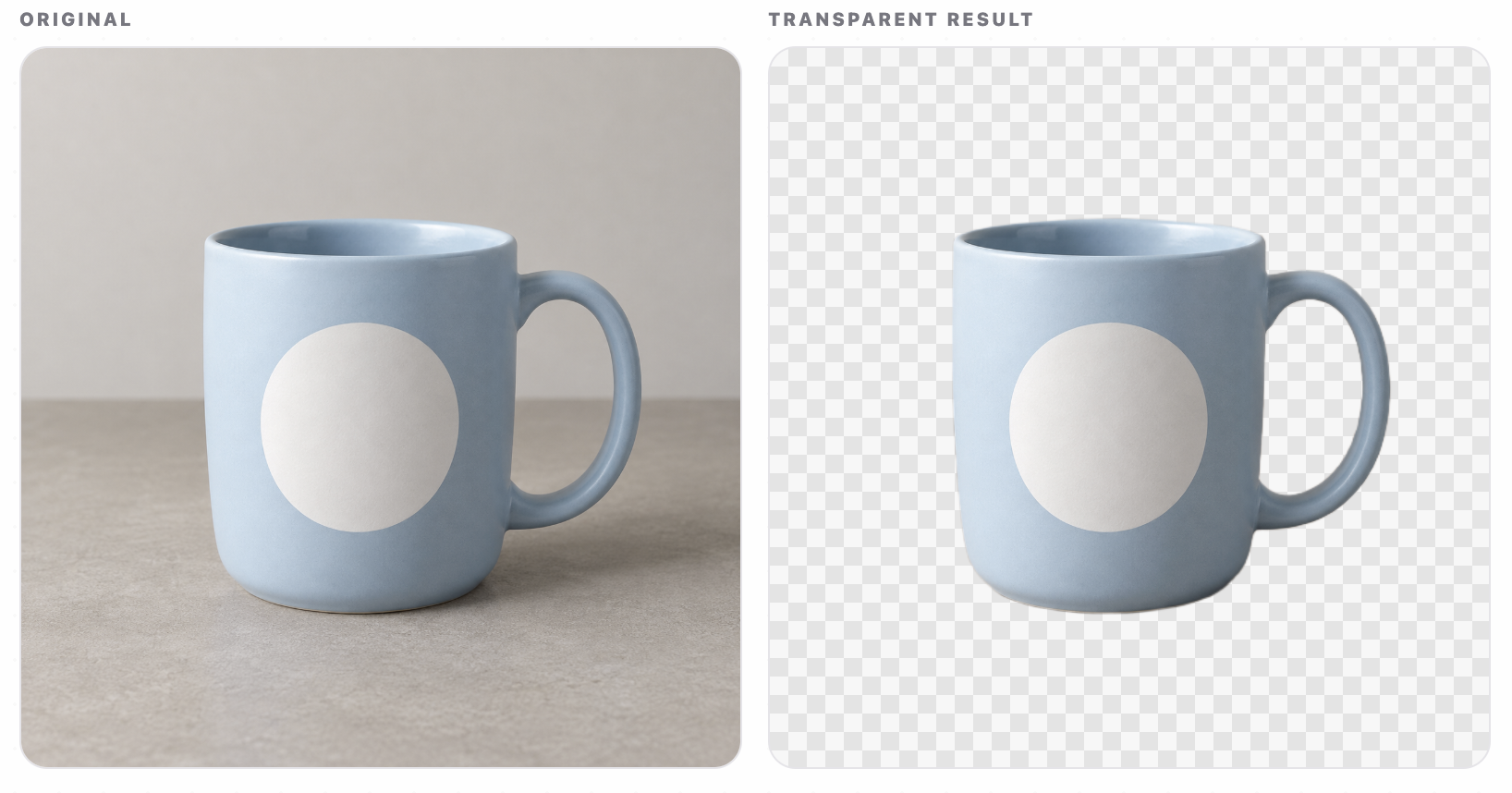
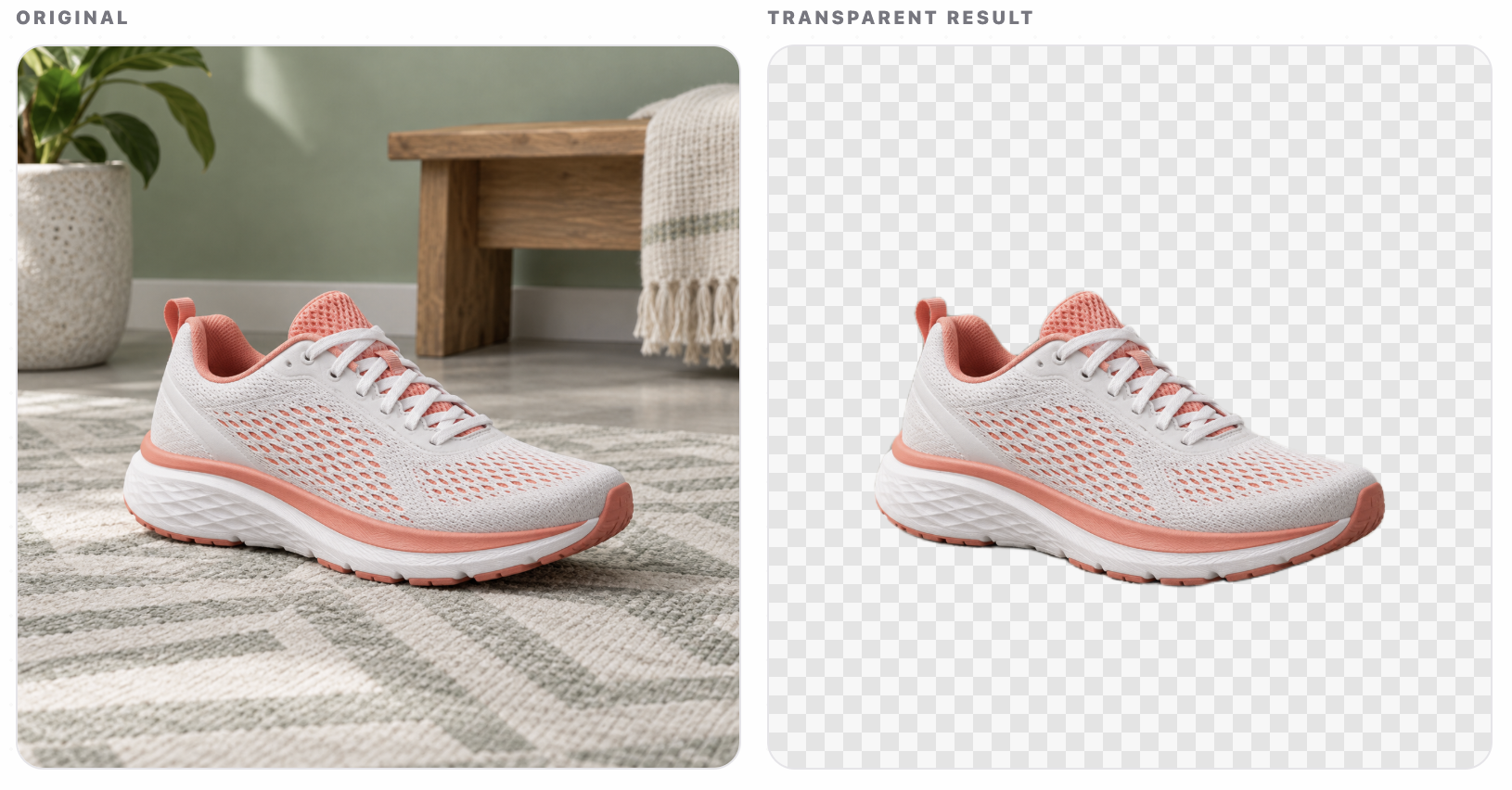
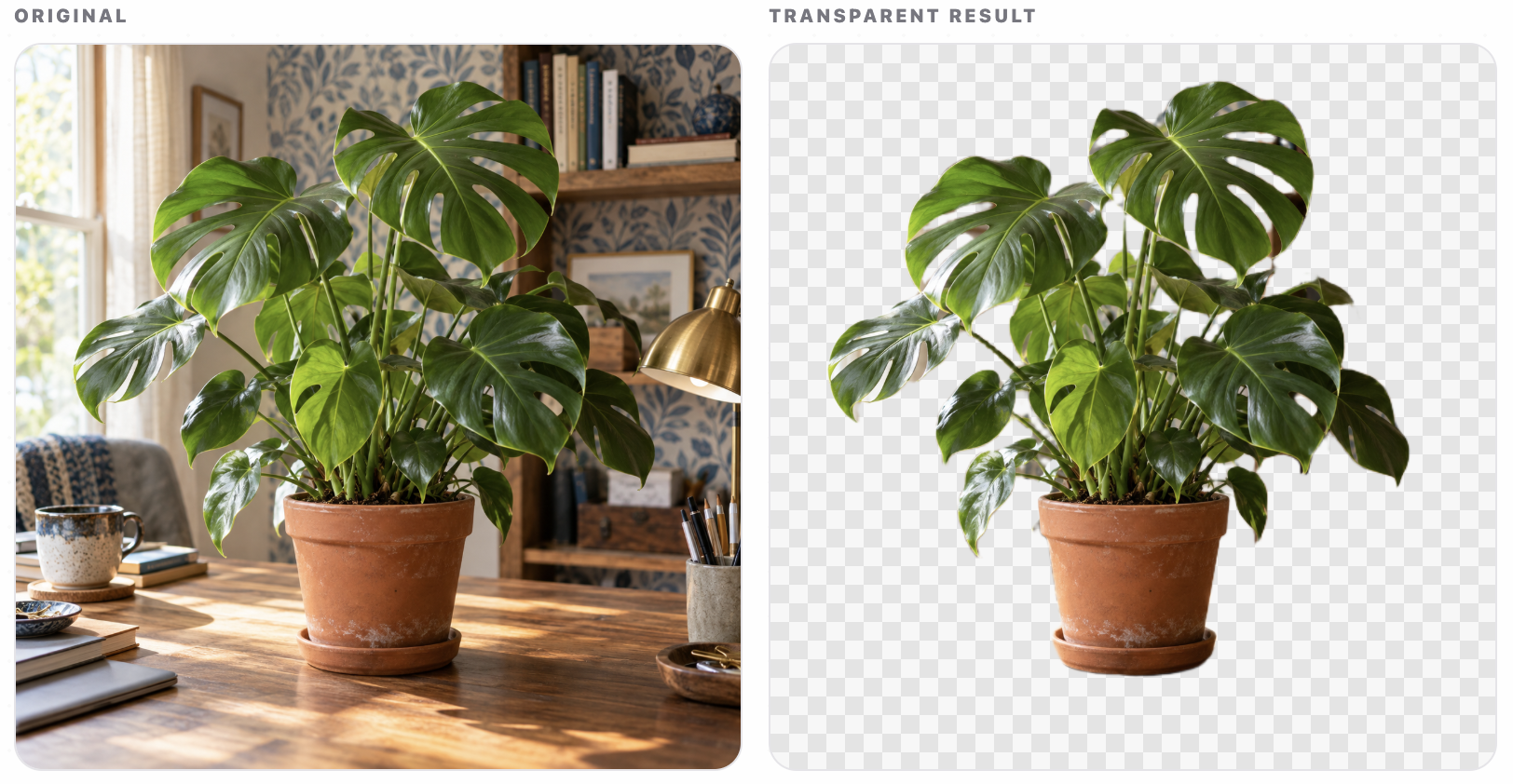
AFTER THE REMOVAL
Inspect the parts that are easy to miss.
Start with the outer silhouette. A good cutout should not shave off the tip of a shoe, a leaf or a curl, but it also should not leave a halo of the old background around the subject.
Are the edges still complete?
Zoom in on thin outlines, laces, hair and small protrusions. Missing detail is often more obvious on a dark background.
Did the holes stay open?
Handles, leaf gaps and spaces between strands should remain transparent when the subject contains open areas.
Is the old scene still visible?
Look for colour spill, bright outlines and a contact shadow that makes the subject look pasted onto a new surface.
Does the PNG work at its destination?
Place the result on a light and dark background, then check it at the size of the listing, post or layout where it will be used.
A FAIR COMPARISON
Keep the source and the question fixed.
When you compare removers, use the same source file, the same requested output and the same viewing size. Do not judge one result from a zoomed-in crop and another from a small preview. Note where the image came from, whether it contains a shadow and which details matter for the next step.
Also separate the quality of the cutout from the convenience of the tool. A useful workflow includes the result, the download, the file format and a privacy model you understand. A beautiful edge is not enough if the file cannot move cleanly into the work that follows.
WHERE POEYSIAPRO FITS
Cutout gives the test a simple place to run.
PoeysiaPRO Cutout is a focused browser workflow for the one-image job. Choose a JPG, PNG or WebP, remove the background on your device, compare the original with the transparent result and download a PNG. The current editor accepts images up to 20 MB and keeps the source image on your device.
The free preview works without an account. A free PoeysiaPRO account opens the full-size download path on supported devices. Cutout is not a public API or a replacement for a broader image suite. If the finished subject needs to become a branded social set, continue with Carousel Composer. If the source is a recording, use Clips.
THE BOTTOM LINE
A good background-removal test ends with an honest image.
Start simple, add the difficult edges and judge each result where it will be used. The goal is not a perfect demo. It is knowing whether the subject is ready for the next part of your workflow.
SOURCES & NOTES
Sources checked September 15, 2026.
The five source images were generated for this practical test set. No external benchmark, model ranking or performance claim is implied. Product details are based on the current Cutout editor.
- PoeysiaPRO Cutout - current browser workflow, file types and privacy statement
- PoeysiaPRO product facts - product and workflow context
- Looking for a remove.bg alternative? - practical comparison notes