Remove the background from a product shot, portrait or idea image in your browser. Your original stays on your device.
01 Upload02 Remove03 Download
PRIVATE IMAGE TOOL
Drop a picture. Keep the subject.
Free preview
Drop an image hereor choose a JPG, PNG or WebP
✦ Your image stays on your device. We never upload it.
PREVIEW
Your cutout is ready.
FREE PREVIEW
Original
Transparent result
Remove the background to see your result.
EXPORT
Free preview
Download a clean transparent PNG - no sign-in needed.
THE CUTOUT WORKFLOW
From one image to a clean subject.
Cutout handles the small image job between taking a picture and using it somewhere else. The path stays focused: choose the source, review what was kept and download the transparent PNG.
01
IMAGE → INPUT
Start with the image you already have.
Drop a JPG, PNG or WebP into Cutout, or choose it from your device. The source stays on your device while you get ready to run the removal.
Drag and drop or use the file picker
JPG, PNG and WebP up to 20 MB
Your source image stays on your device
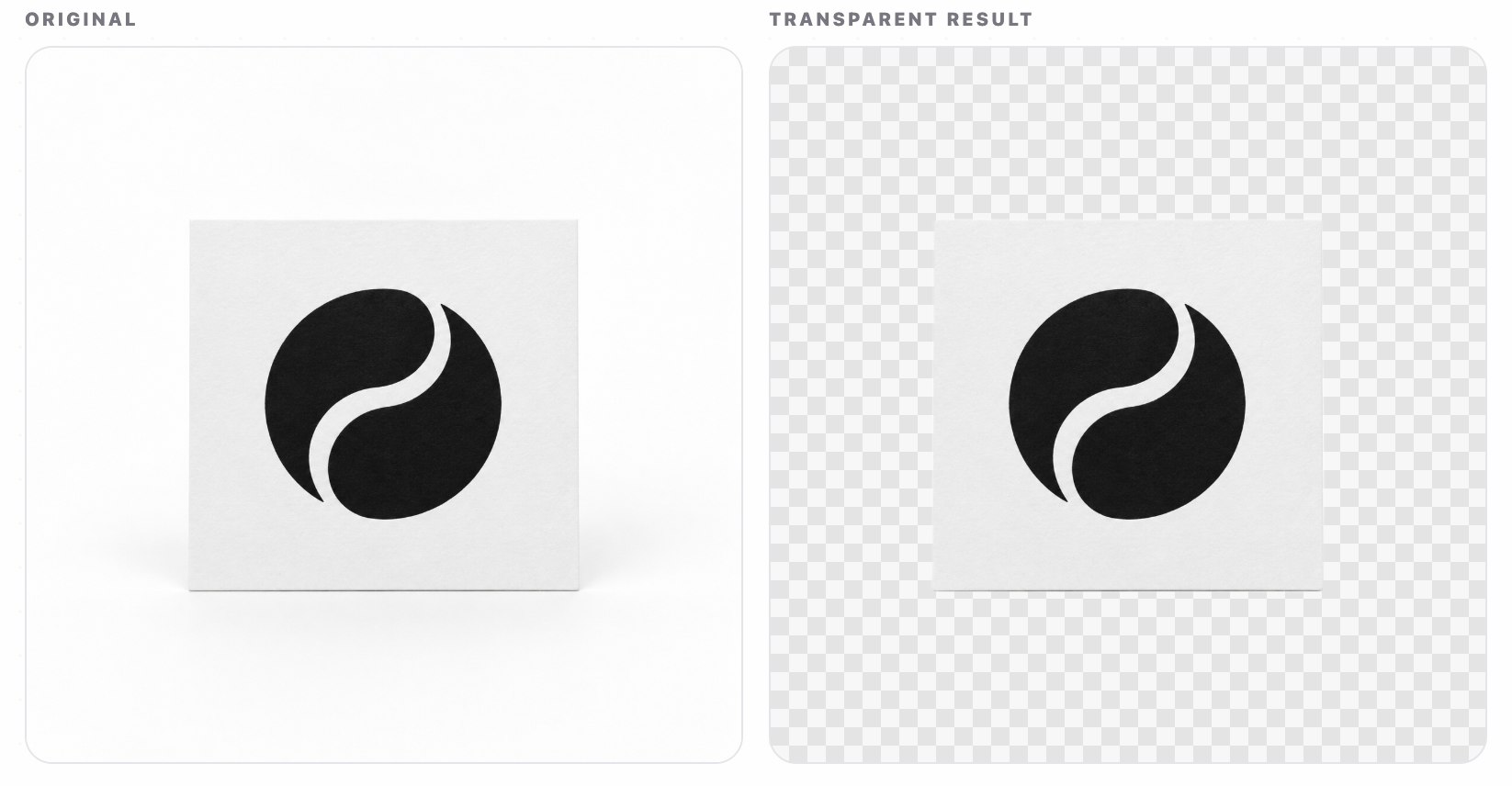
A plain background is the clean starting point.White logo card · low-complexity edge.
02
REMOVE → REVIEW
See the change before you download the file.
Choose Remove background when you are ready. Cutout places the original beside the transparent result, so you can check what the edit kept.
One focused background-removal step
Original and result shown side by side
Transparent preview before download
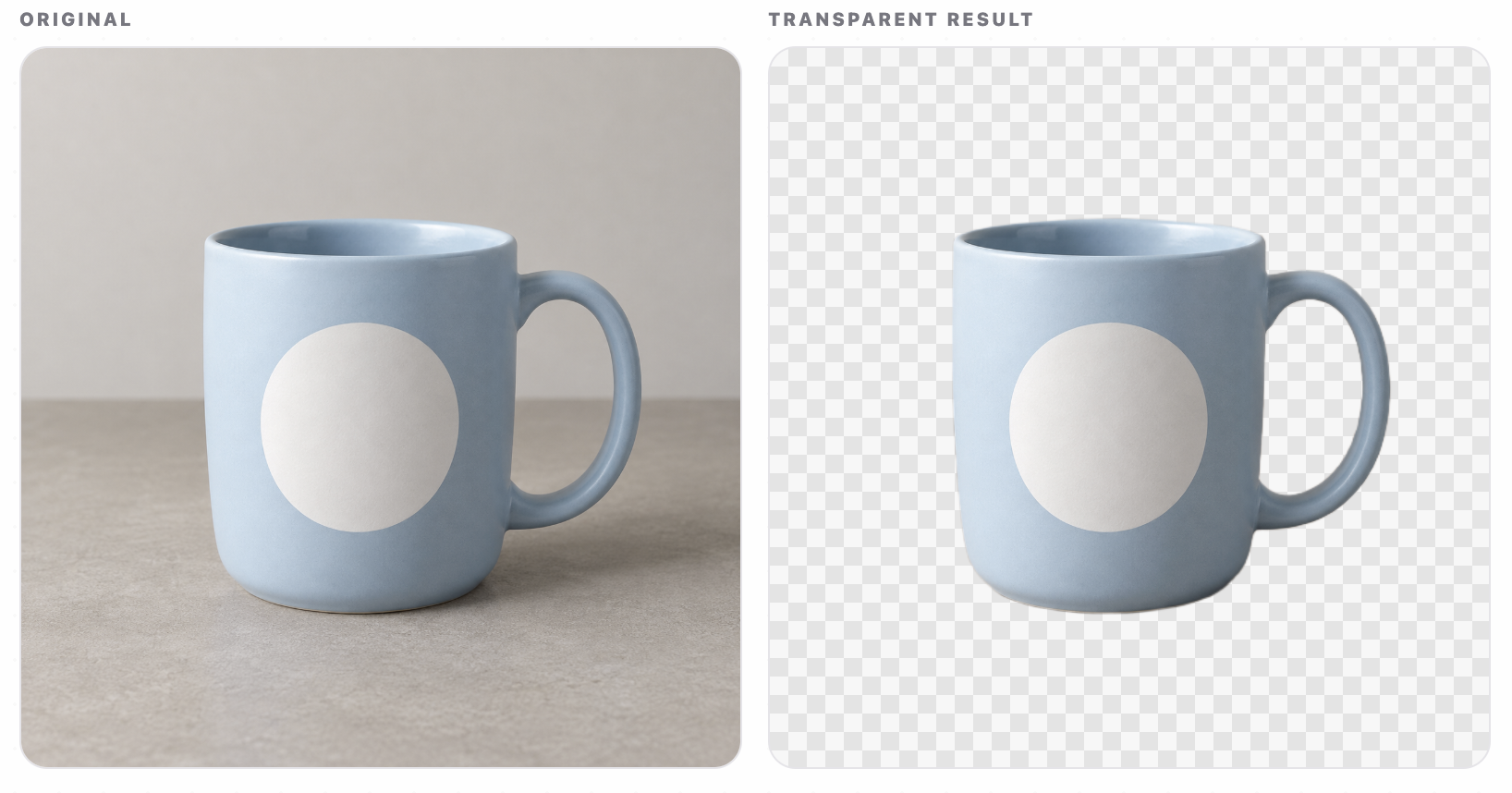
Curves and open spaces need a quick check.Ceramic mug · handle and contact edge.
03
PREVIEW → DOWNLOAD
Download the version that fits the job.
Use the free preview for a quick result. Sign in with a free PoeysiaPRO account when you need the full-size download path on supported devices.
Transparent PNG output
Free preview without an account
Full-size download with a free sign-in
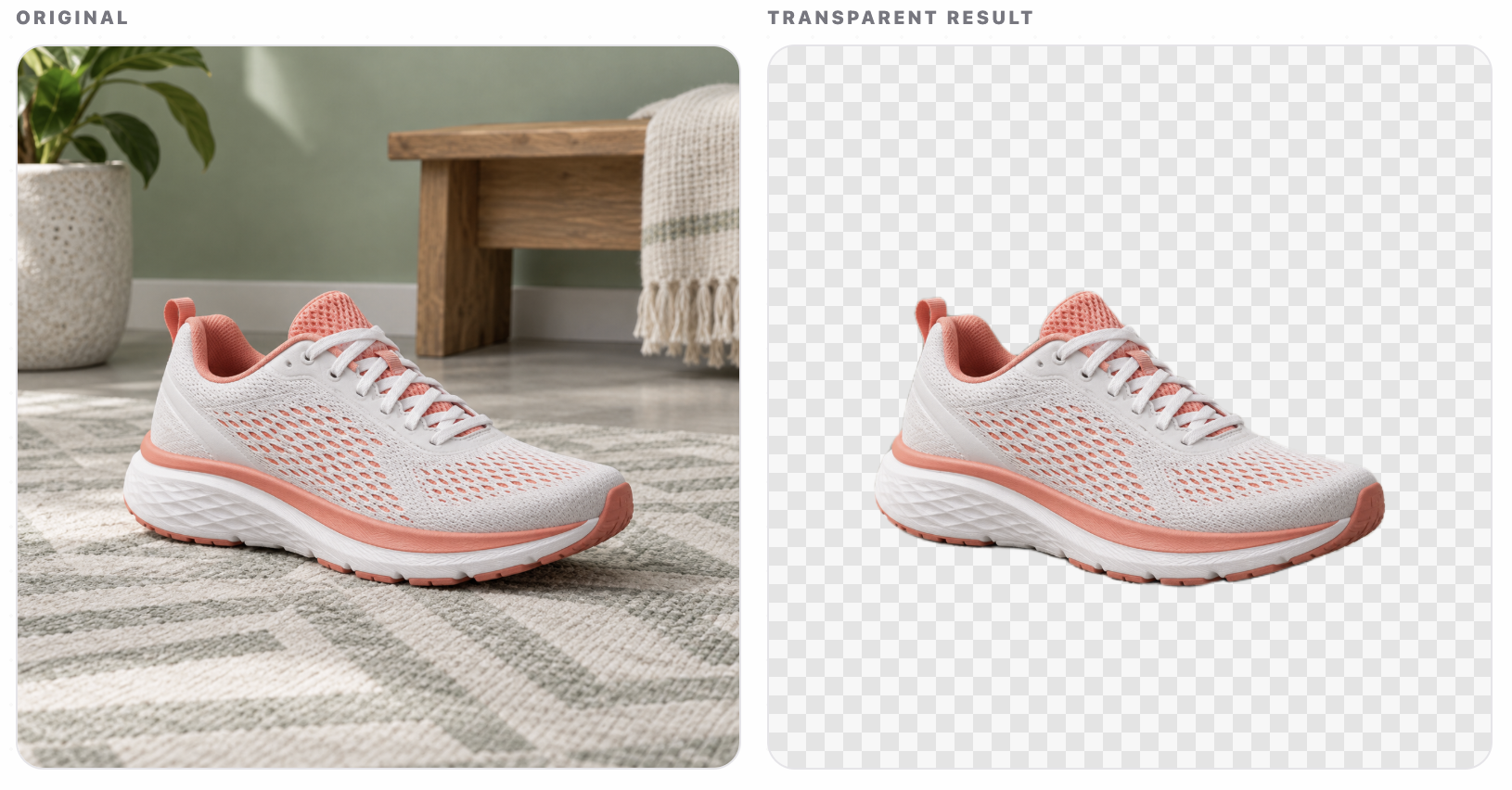
Texture matters once the file leaves the editor.Running shoe · laces, mesh and sole.
04
SUBJECT → NEXT WORKFLOW
Take the subject into the work that comes next.
Cutout stops at a clean transparent PNG. Continue in Carousel Composer for a branded social set, or use Clips when the source is a long recording.
One focused image task
Carousel Composer for a branded set
Clips for long-form video work
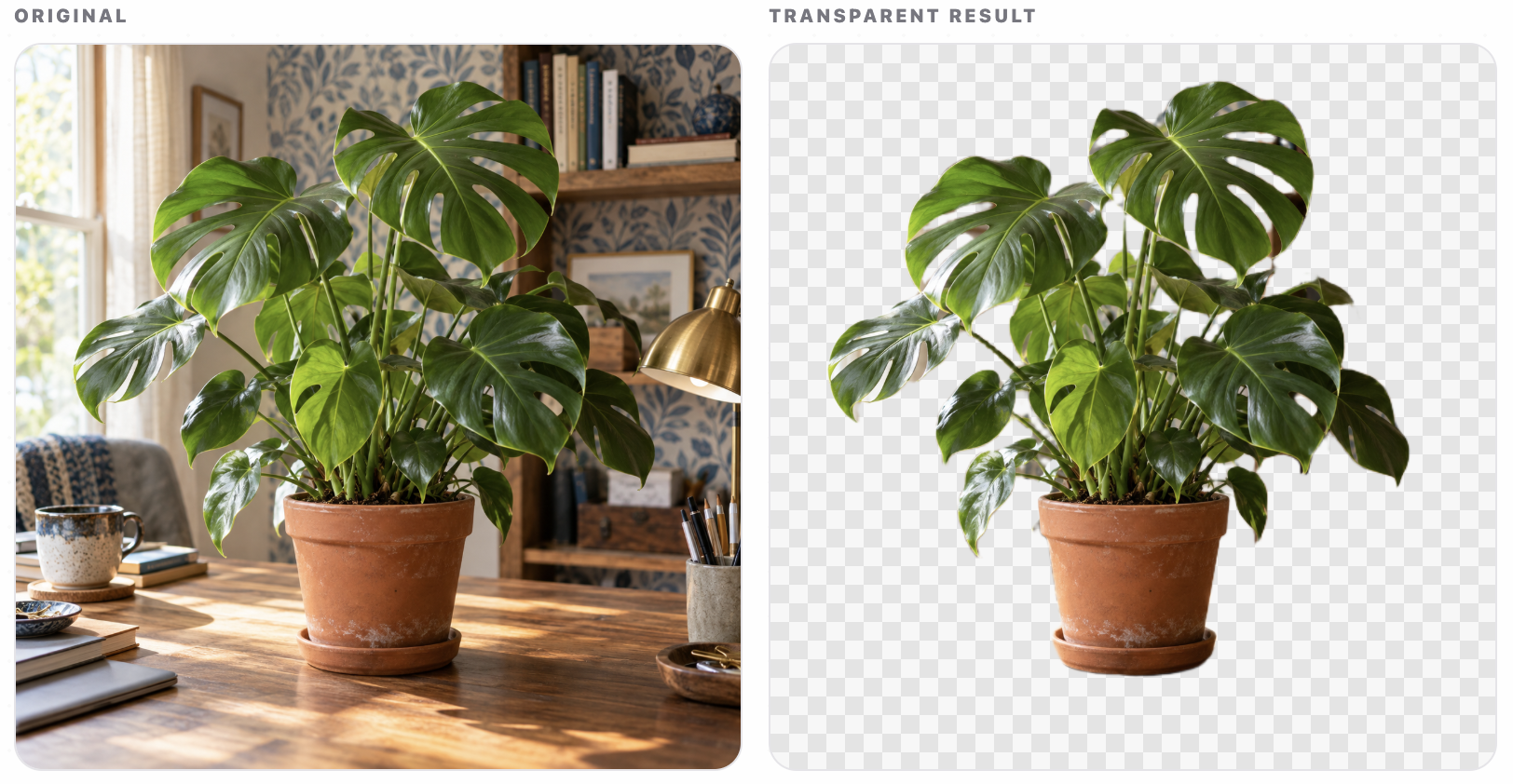
Leaves show why the result deserves a look.Monstera plant · thin stems and open leaf gaps.
05
DETAIL → CONFIDENCE
Give fine hair and busy scenes a closer look.
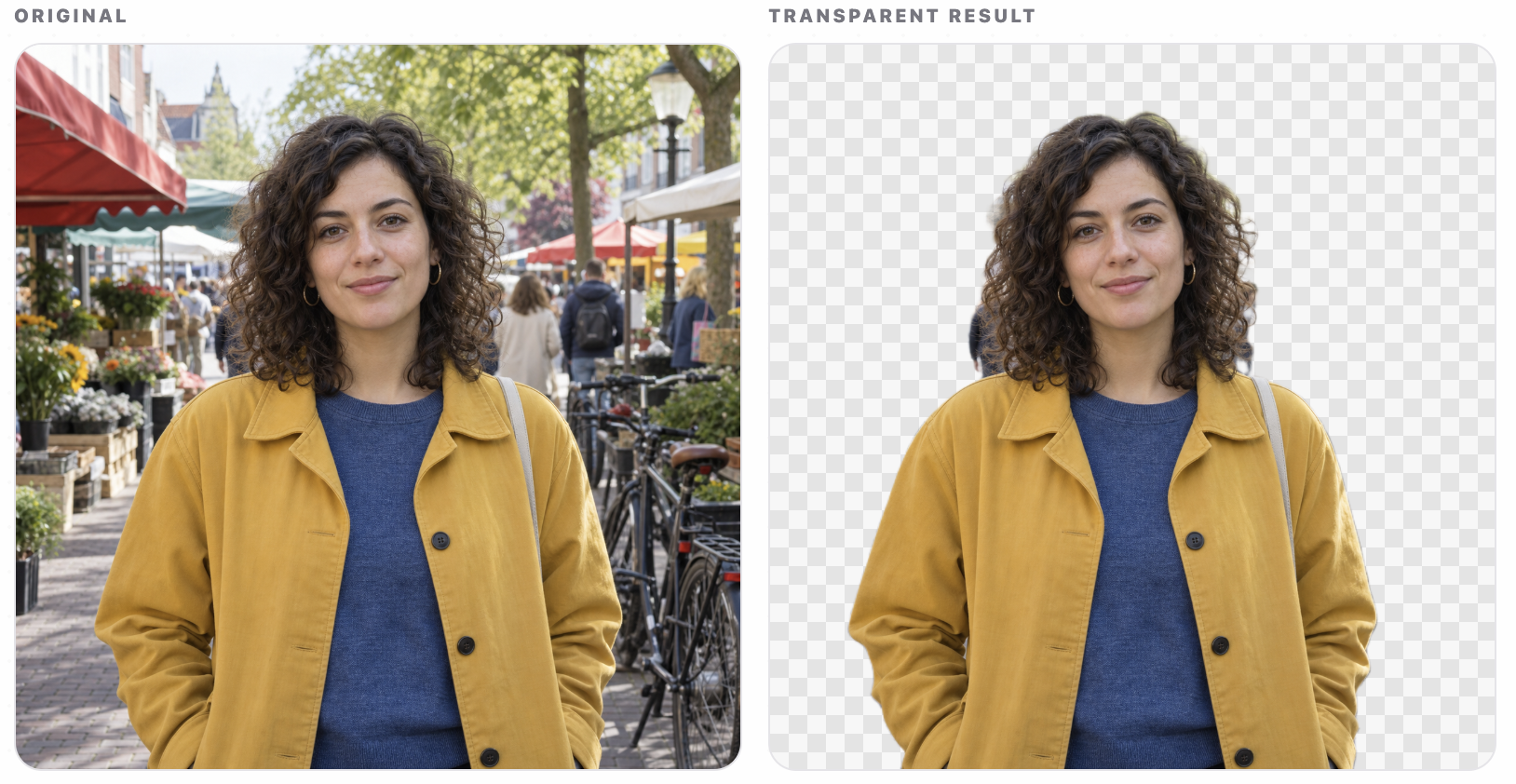
Some images need more attention than a clean product shot. Use the side-by-side view to check curls, shoulders and colour around the subject before you take the file into its next workflow.
Fine curls against a busy background
Shoulder and clothing edges
Review at the size you will actually use
Hair is where a useful comparison earns its place.Market portrait · curls and a visually busy background.
source image ai-generated
FAQ
Questions before you remove a background.
The practical details about files, privacy and the Cutout workflow.
What is PoeysiaPRO Cutout?
Cutout is a browser-based PoeysiaPRO workflow that removes the background from a single image and lets you download a transparent PNG.
Which files can I use?
Cutout accepts JPG, PNG and WebP images up to 20 MB in the current editor.
Is my image uploaded?
No. The current workflow keeps the original on your device and processes the image in the browser. Model and runtime files may be downloaded by the browser, but your source image is not sent to PoeysiaPRO.
Can I use Cutout without an account?
Yes. You can create and download a clean transparent preview without signing in. A free PoeysiaPRO account unlocks the full-size download path on supported devices.
Does Cutout replace Canva or PhotoRoom?
No. Those products cover broader design and image workflows. Cutout is a focused alternative to remove.bg for the one task of getting a subject onto a transparent background.
Can I use the result in Carousel Composer?
Yes. Download the transparent PNG, then continue with Carousel Composer when you want to build a branded social carousel around it.
POEYSIAPRO CUTOUT
Remove the background. Keep the useful part.
Try the editor above, then take the transparent PNG wherever the next part of your workflow lives.